You’re ready to plan a trip to a dream destination. You are overwhelmed with interesting places that have come up in research. Friends hear where you’re going and start recommending places. Next thing you know, you’ve got a huge list of places, not enough time to visit them, and a travel partner who is already annoyed at the ridged itinerary you created to try and hit them all.
This is exactly why you need to create a myGoogleMap!
- you will be able to visualize and run distances between points of interest
- you can create flexibility in your schedule by only planning a few items that require reservations/logistics and leave everything else to relaxed fate
- you can access it on your phone while you’re there to find closest landmarks/restaurants to optimize your time
- you’ll be able to remember where you went (for reviews and future visits!)
- you’re able to copy the map to create a new one and use what you didn’t hit for future trips with less additional planning
How I create a myGoogleMaps per trip:
- If you don’t have one already, you must create a google account.
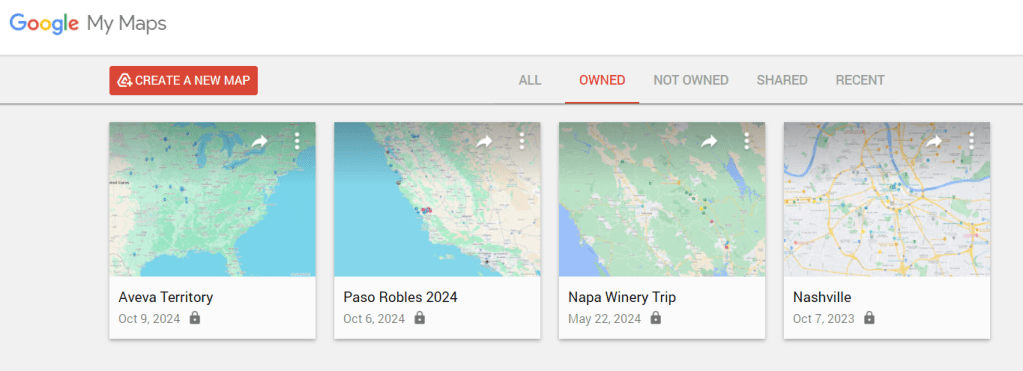
- go to http://mymaps.google.com
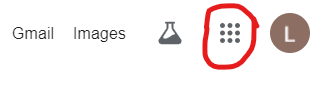
- OR log into your gmail/google account and choose the map icon after you choose the 9 dots in the top right corner
2. Create a new map
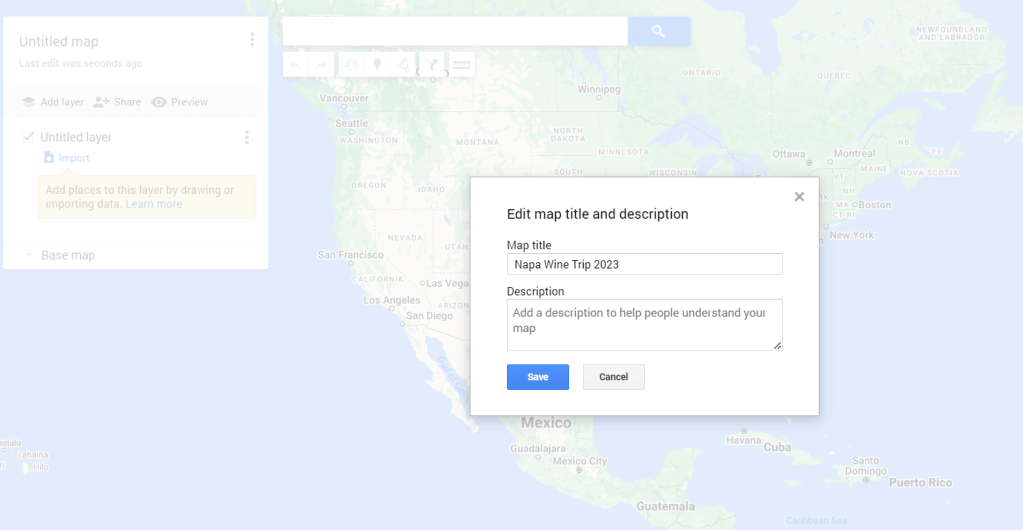
3. Double click on “untitled map” and you can change the name to your destination.
4. I like to use each layer as a different category – hotels, restaurants, wineries, excursions, etc. Select the 3 dots next to the “untitled layer” and rename it accordingly. You can add as many layers as you wish.


5. Now you can type in the name of the location or address. When it comes up on the map, you can choose to “add to map”.

8. I like to change the icon to be unique to the type of location and a unique color so when they all populate the map, you can quickly tell the difference between what is a restaurant vs a hotel, etc.
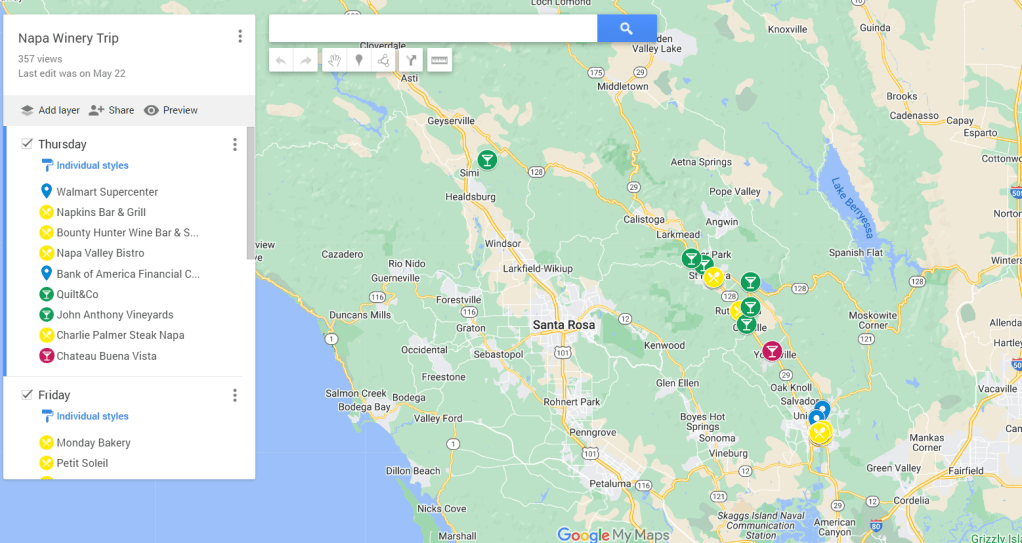
9. Now – this is totally optional and a sign of my OCD so don’t feel like you need to do this last step.
Once I’ve solidified an itinerary, I like to move the map locations to layers by day of our trip and arrange them in order we will be visiting so I can keep track of the optimal order. I also change all of the locations that don’t have a reservation to a single color – so I can easily visualize what’s for sure and what’s an option while we are out and about.
This worked so great when we were in Napa and had an extra hour to squeeze in one more winery or were hungry and wanted to know what was nearby. I was able to open the map, see what was nearby in my “not for sure” color and pick the closest option!
 Travel with a Cocktail
Leave a comment